Teacher Dashboard Redesign
June - August 2025
(10 weeks)
Product Design Intern
Figma, Asana, Adobe Creative Suite
As a Product Design intern on the Teacher Experience team at 9 Dots, I redesigned the Teacher Dashboard that educators use to lead CS classes for elementary schoolers. I led usability testing in co-design workshops, conducted interviews with teachers, analyzed co-design workshop data, and developed mockups of the dashboard.
The Problem
The 9 Dots computer science program is shifting to a teacher-led classroom style, where new teachers must lead classes and analyze students' progress using only the Teacher Dashboard.
The Solution
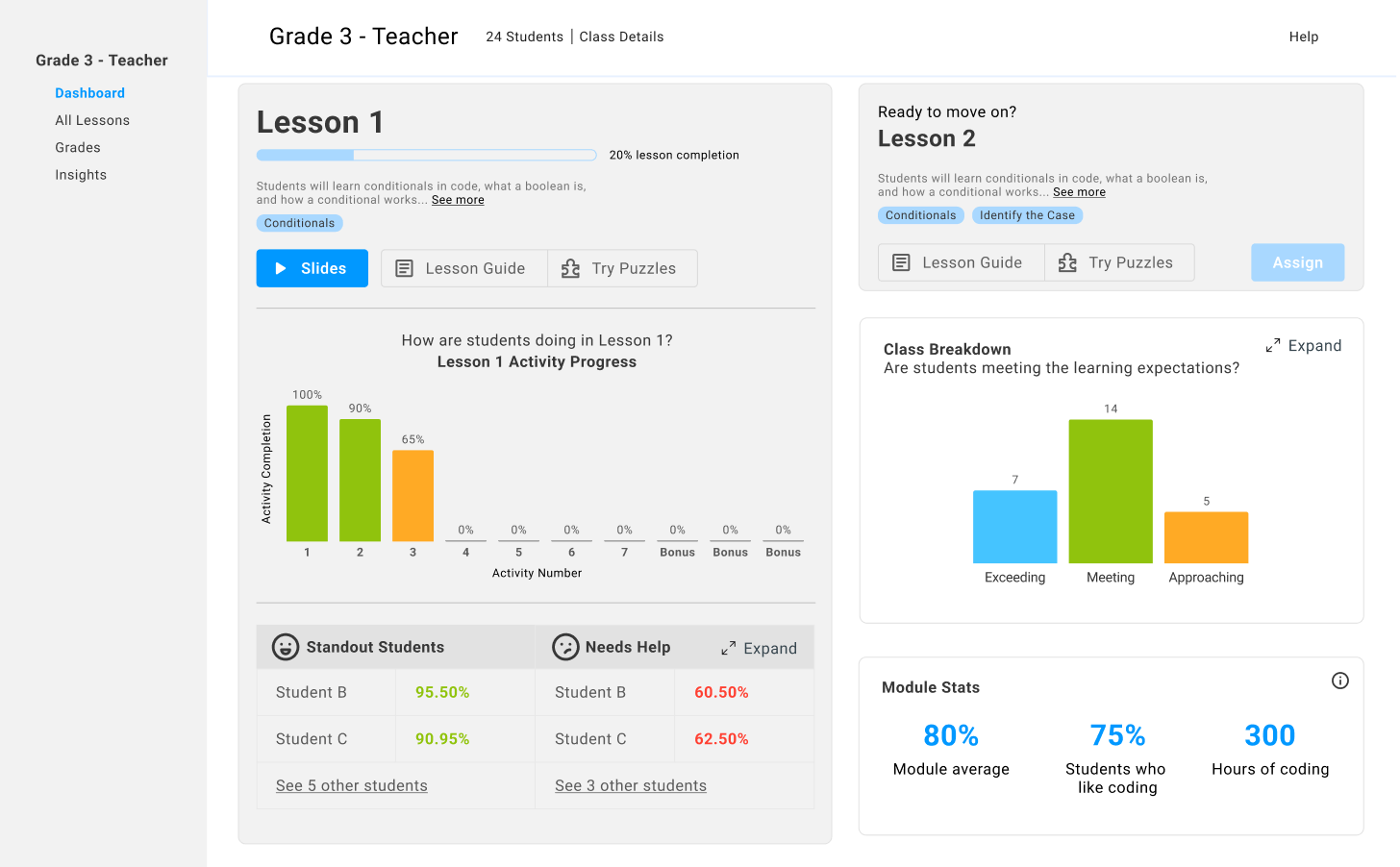
I redesigned the Teacher Dashboard to include intuitive lesson assignment, student progress, and class analytic features to inform teachers of student progress.
Final Teacher Dashboard Redesign
Define + Research
Issues with the current Teacher Dashboard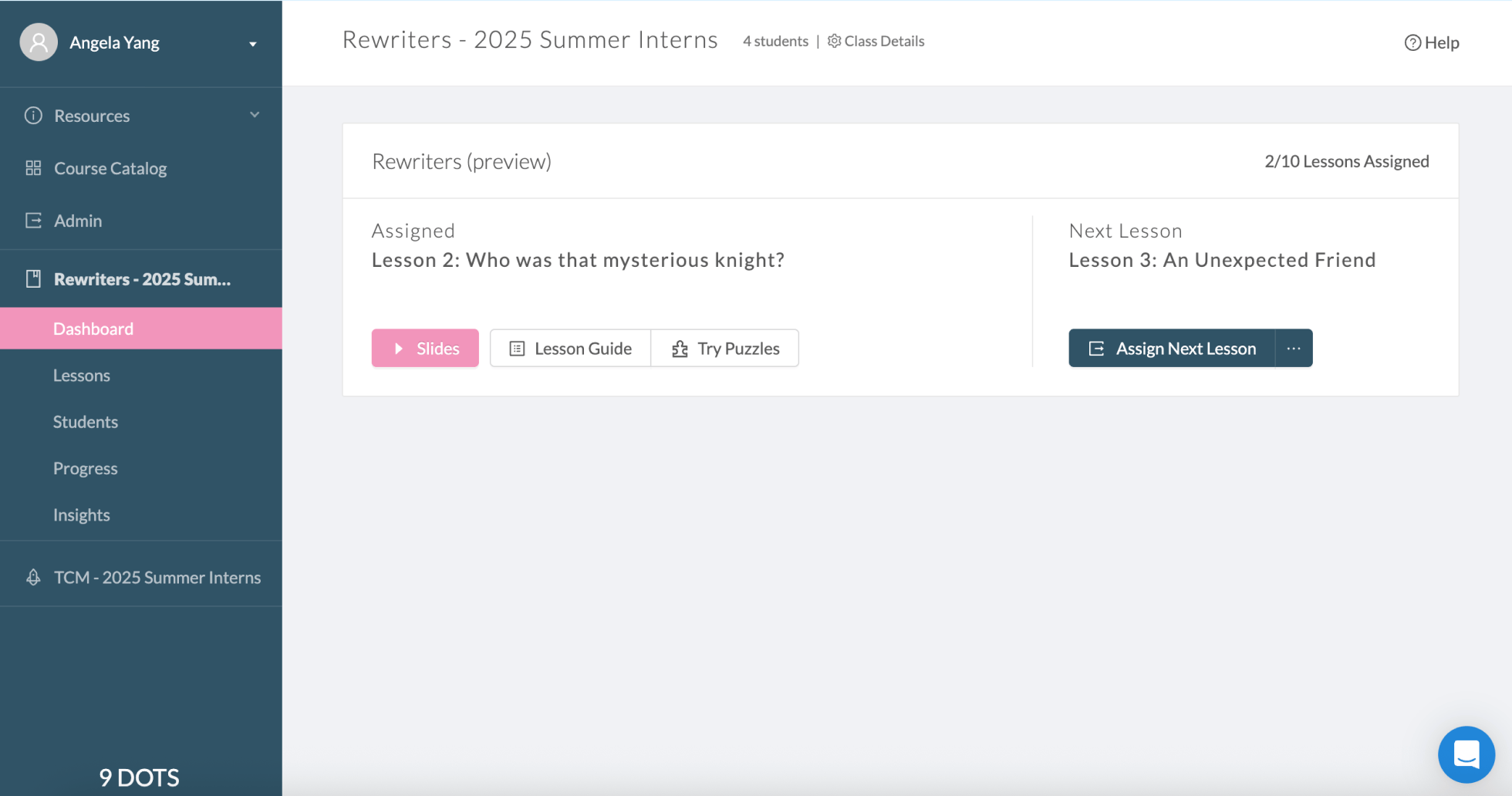
Old dashboard design
Usability issues
The old dashboard had unintuitive user flows.
New teachers weren't given much guidance on how to navigate the website and see student data. There were many unused features in the left-hand sidebar that teachers never touched, since they weren't sure what each feature could be used for.
There was a significant amount of unused space in the bottom half of the original dashboard. This space could be utilized for crucial teaching statistics like tracking student progress or activity completion.
Additionally, some of the buttons on the dashboard were unclear. For example, the "Try Puzzles" button allowed teachers to preview the lesson puzzles that students were assigned, but teachers weren't aware of this feature.
Pivoting to a teacher-led model
Previously, 9 Dots provided new computer science teachers with a Coding Coordinator who would assist teachers for the first year. Once the teachers were trained, they would be able to teach by themselves. However, many new teachers didn't feel confident teaching once the Coding Coordinator left.
9 Dots aims to scale its educational platform to many more schools in the next few years. To achieve this, they've adapted a teacher-led training structure that helps teachers learn how to use the 9 Dots platform on their own. This teacher-led model builds teaching foundations in new educators from the start of their careers, and gives teachers professional development workshops in lieu of Coding Coordinator support. This way, 9 Dots teachers can feel confident teaching the curriculum for many years on their own.
Approachable teacher experience
As 9 Dots expands to medium growth, there will be lots of new teachers adapting the 9 Dots computer science curriculum in their classrooms. My goal with the dashboard is to make the teacher's user experience straightforward and welcoming. Teachers should be able to assign lessons, view student progress, and analyze lesson statistics from one look at the dashboard.
To pinpoint exactly the kind of teacher the 9 Dots design team was building the dashboard for, I made a user persona for a prospective beginner teacher. I based the persona's traits on previous interview data that my design supervisor had done with teachers before I arrived.

User persona for a beginner computer science teacher using the 9 Dots curriculum

The main needs, wants, pain points, and motivations of a new 9 Dots teacher
Design Sprint
HMWs, sketches, and low-fidelity wireframesMy team and I went through multiple rounds of 1-2 week design sprints. In each sprint, we engaged in blue-sky brainstorming, ideating How Might We questions and task flows. We brainstormed HMW questions about the dashboard's purpose to teachers, and then organized them into broader HMW topics.
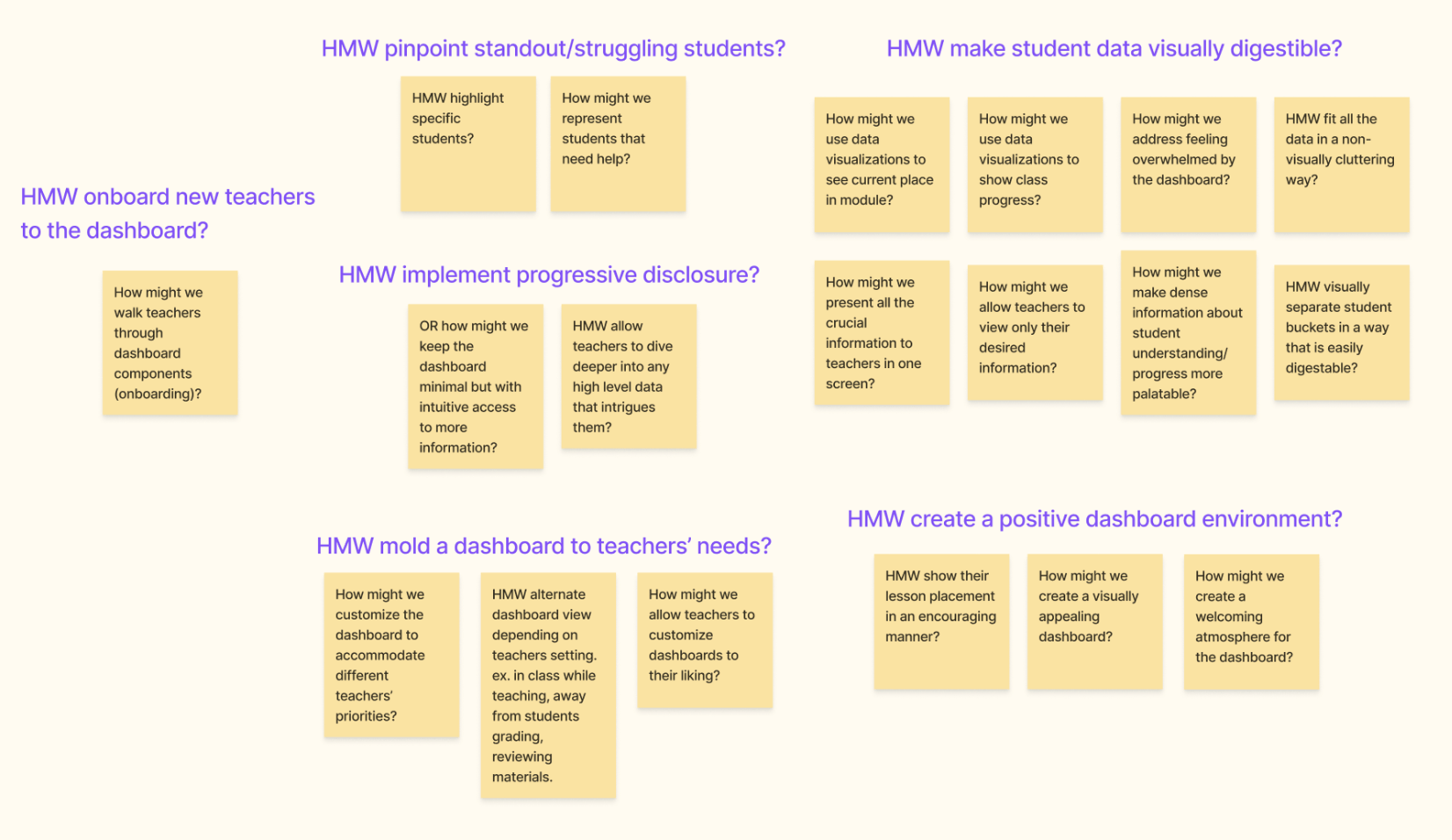
I created an ideal task flow for teachers using the dashboard, breaking down the teacher's actions into different HMW questions. The final goal of this task flow was for teachers to scan the dashboard and form a solid understanding of their students' progress.

How Might We
How might we shape a dashboard to new teachers' needs?
How might we help teachers analyze their class progress at a glance?
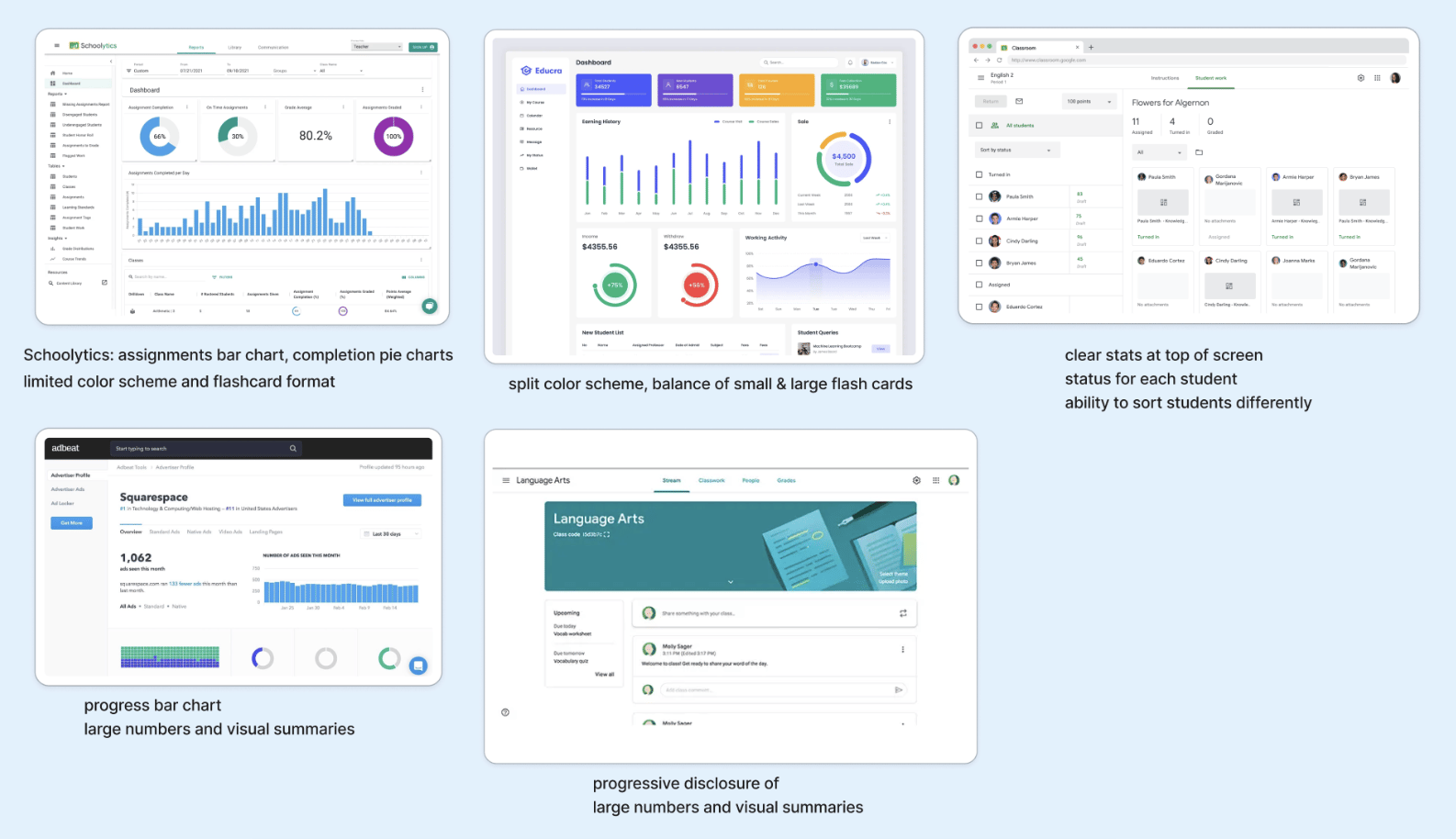
In the next stage of the design sprint, I collected design references for two versions of the dashboard redesign- a design based on individual widgets and a design featuring only one lesson. I focused on the widget-based dashboard during the design sprints, where each feature takes up a "card" on the screen.
I created sketches of the widgets dashboard and held quick design critiques with my product design team. They emphasized that features showing student progress and features that allowed for teaching flexibility were important to the overall user experience.
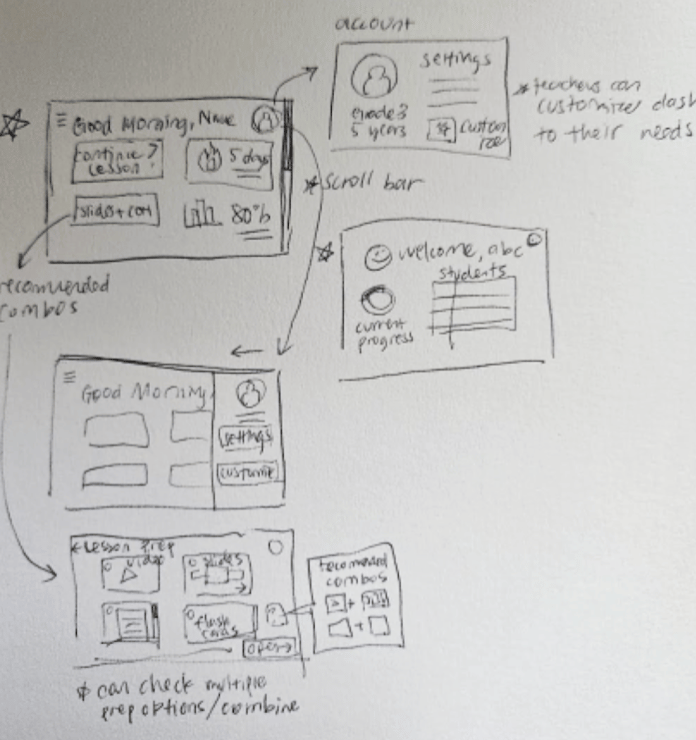
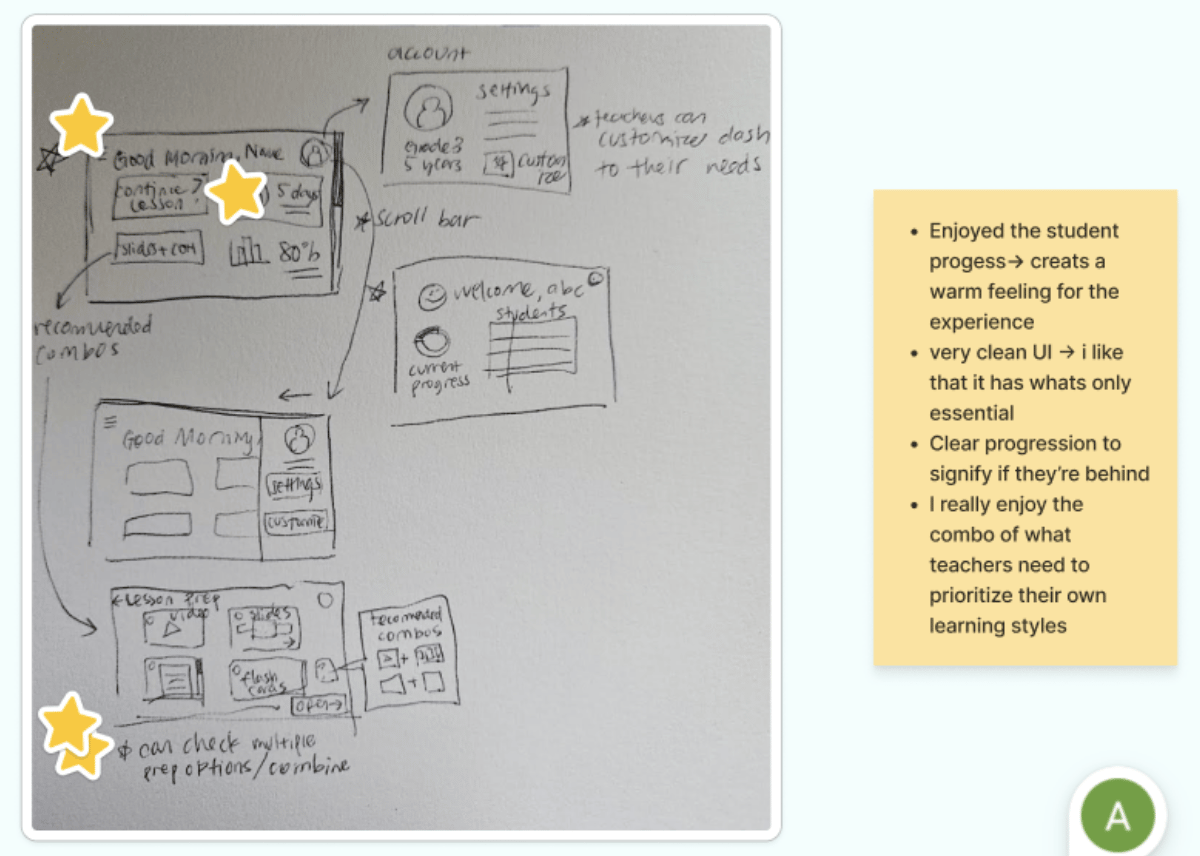
I applied these design critiques to new wireframes, and analyzed how additional information for each widget would pop up on the screen when teachers clicked on them.
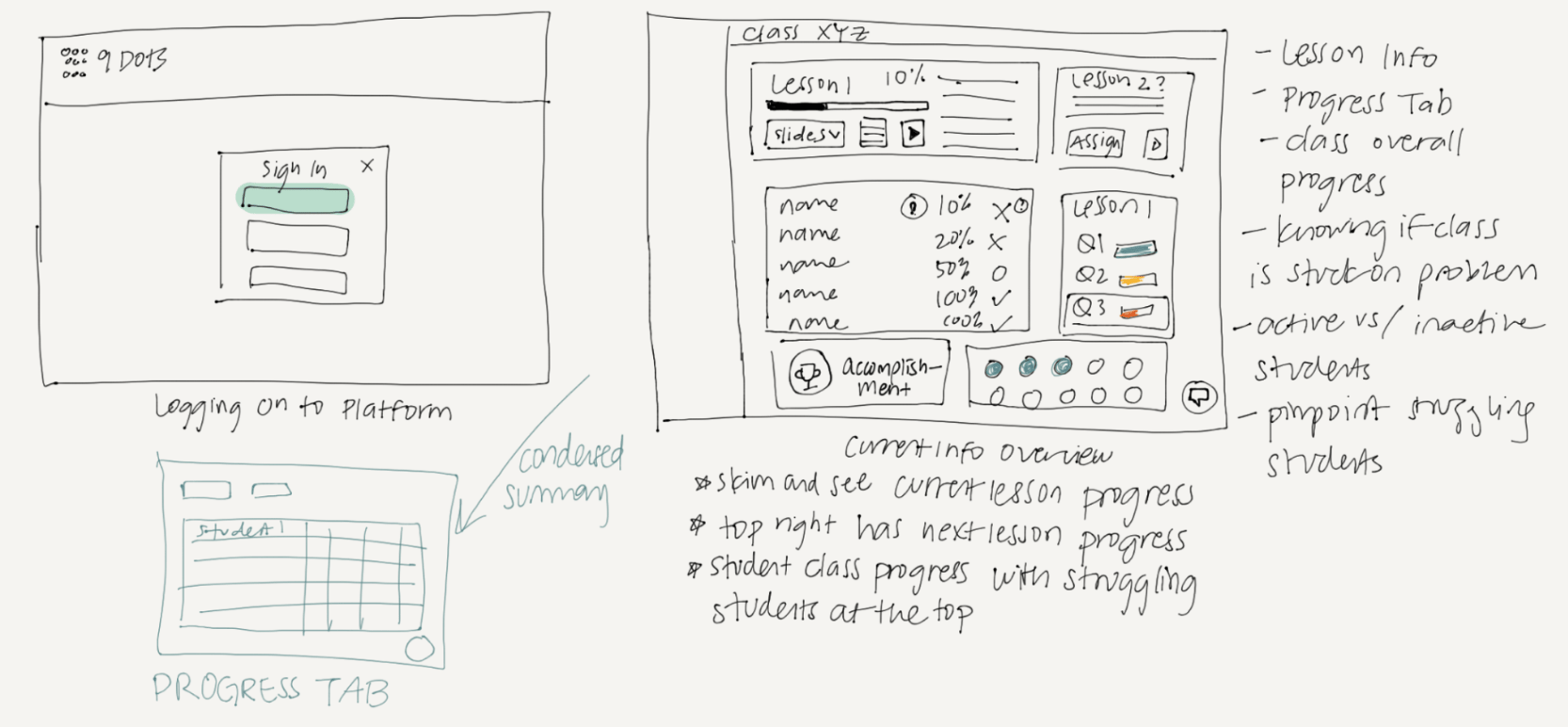
Teachers navigate to the dashboard from their login page
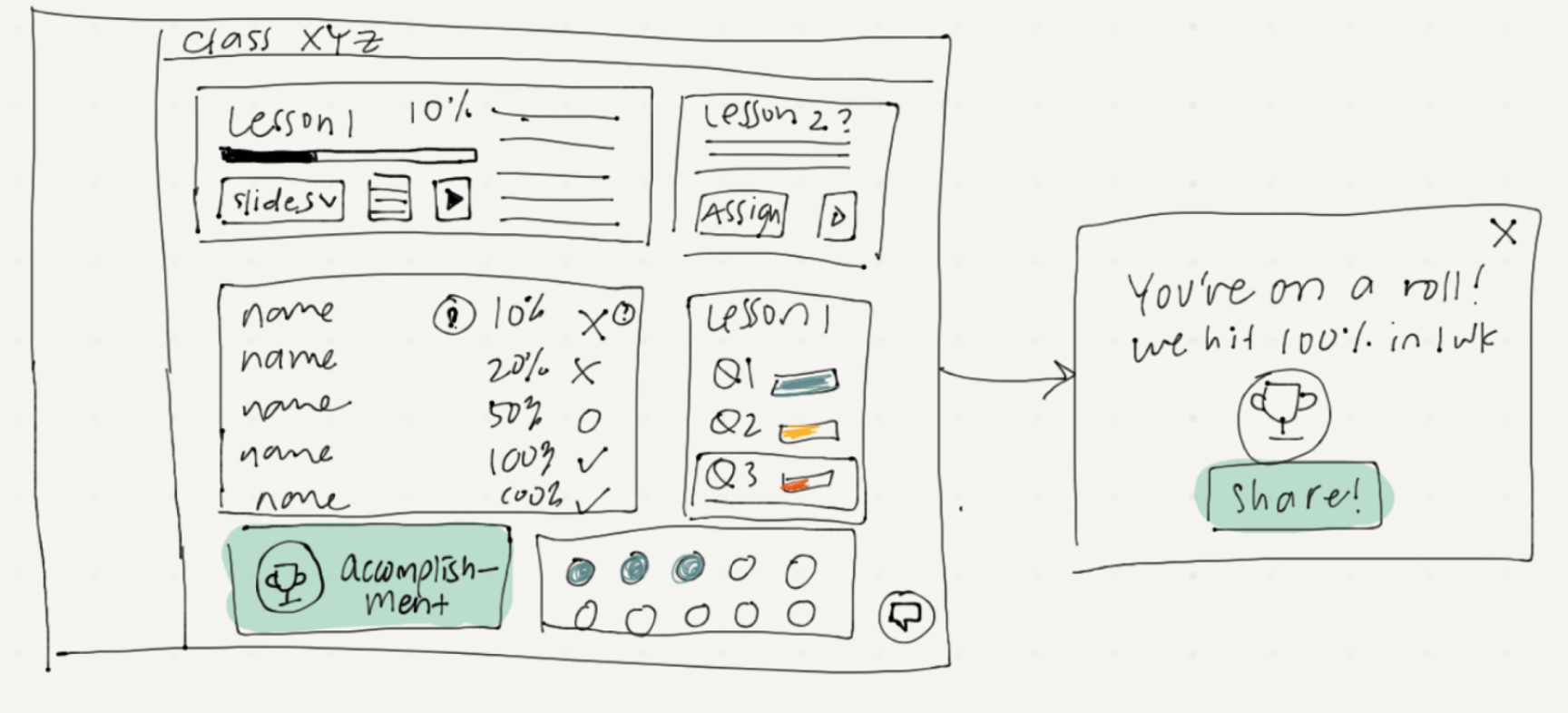
Motivational progress report
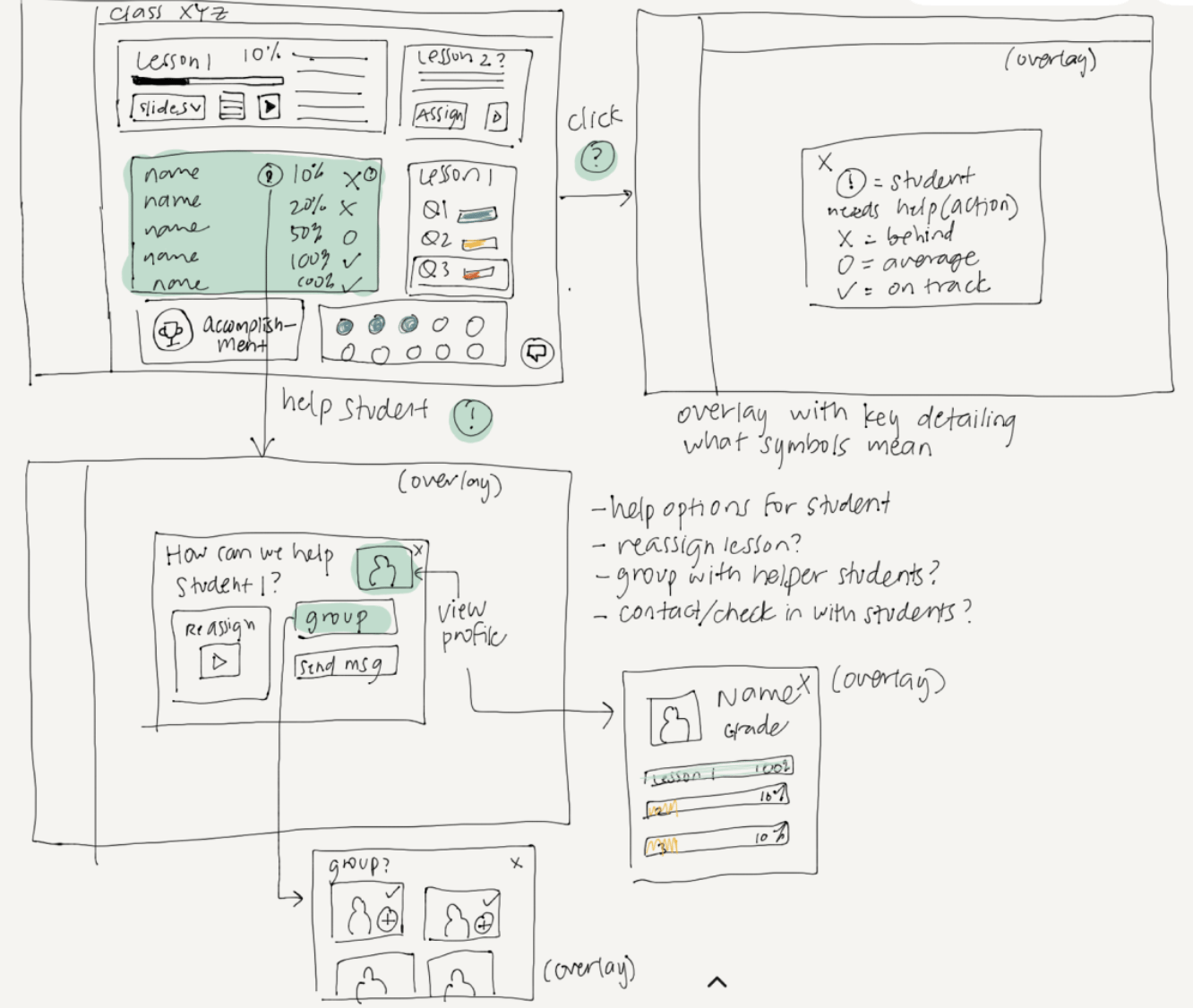
Identifying students who need help
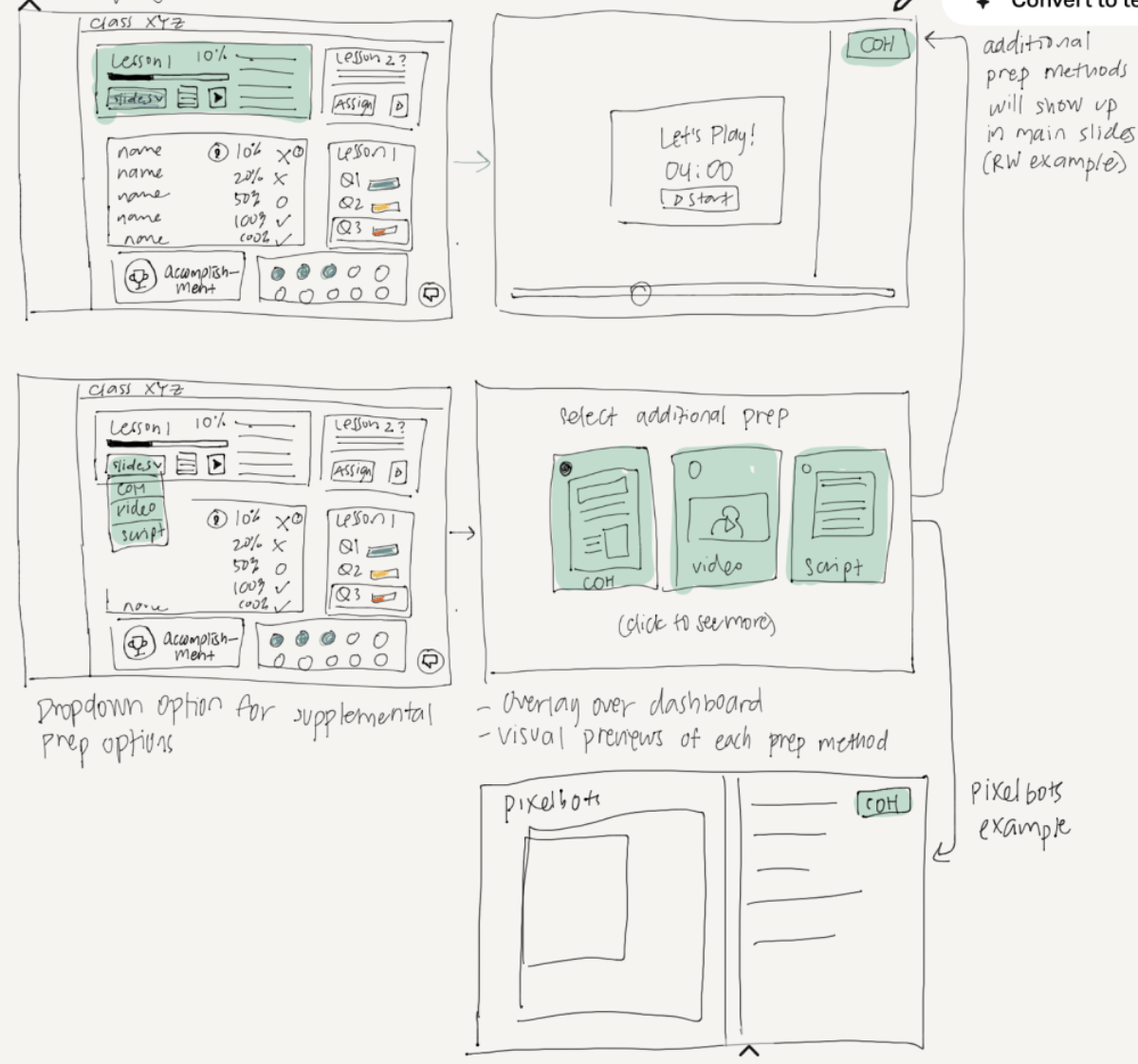
Choosing lesson preparation materials
I created multiple rounds of grayscale wireframes to use in design critique meetings. To make future iterations faster, I kept the wireframes simple and used minimal detail in each component. I designed several pop-up screens for the different widgets in the screen as well.

Initial grayscale wireframe
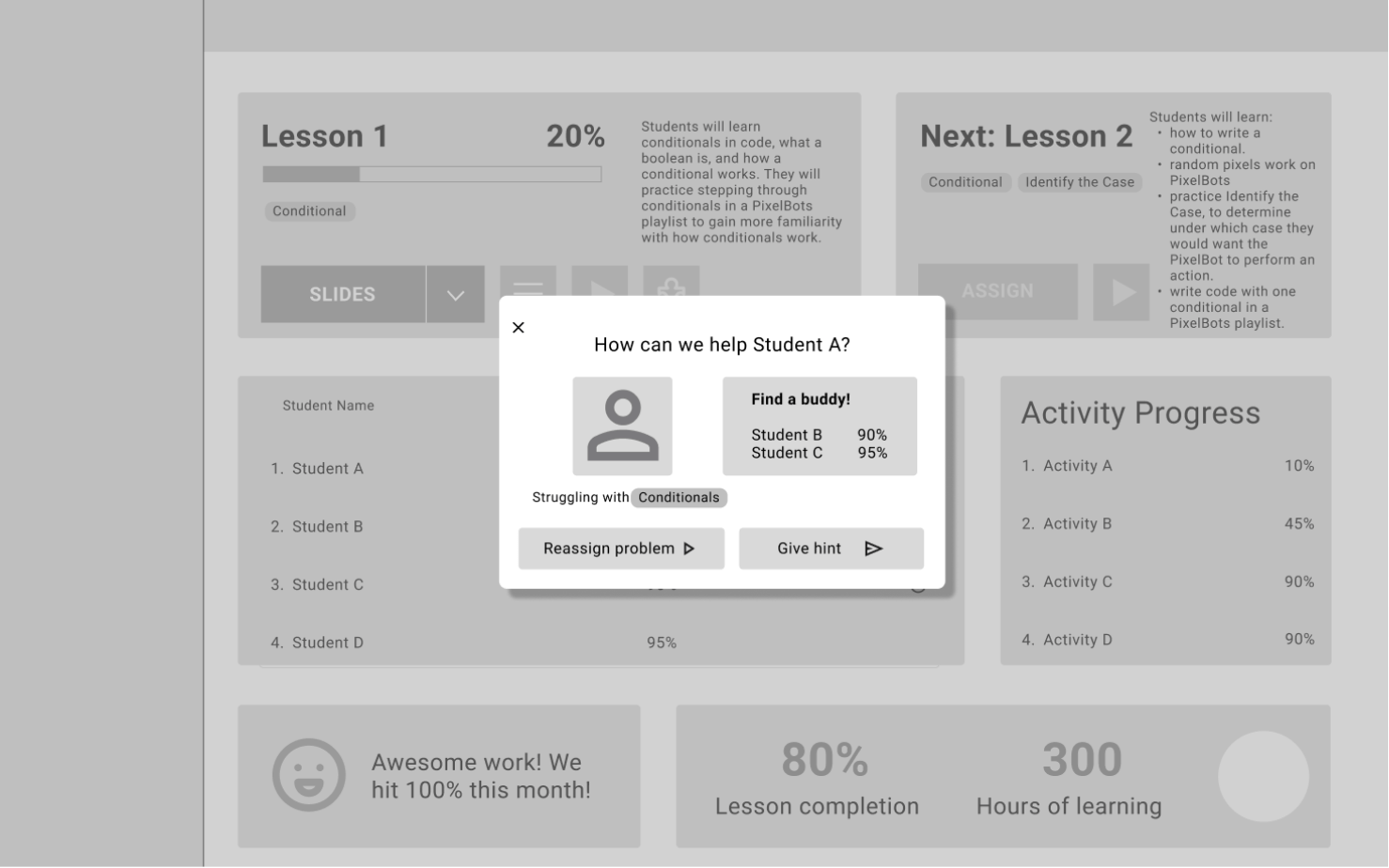
Students that need help
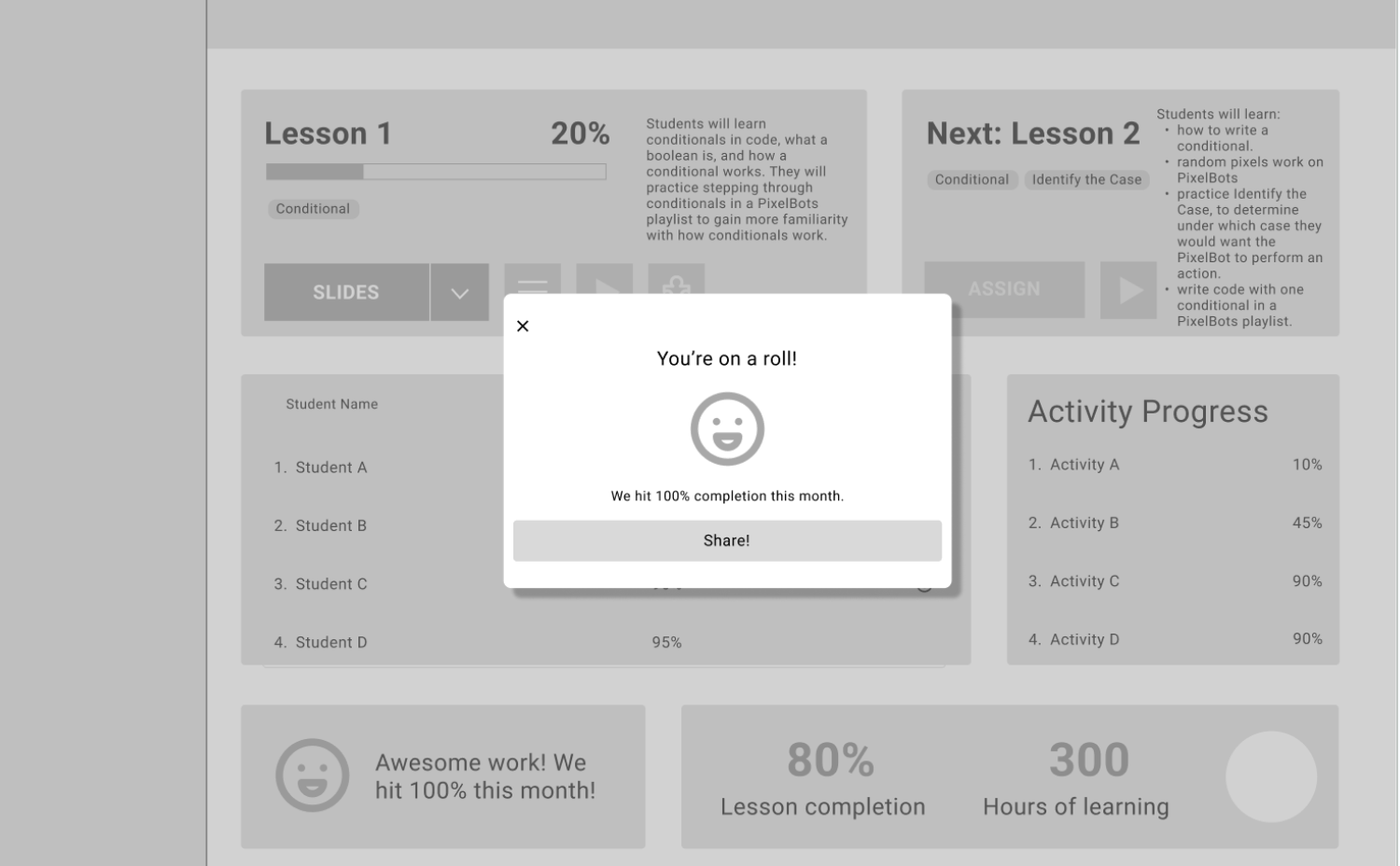
Motivational message
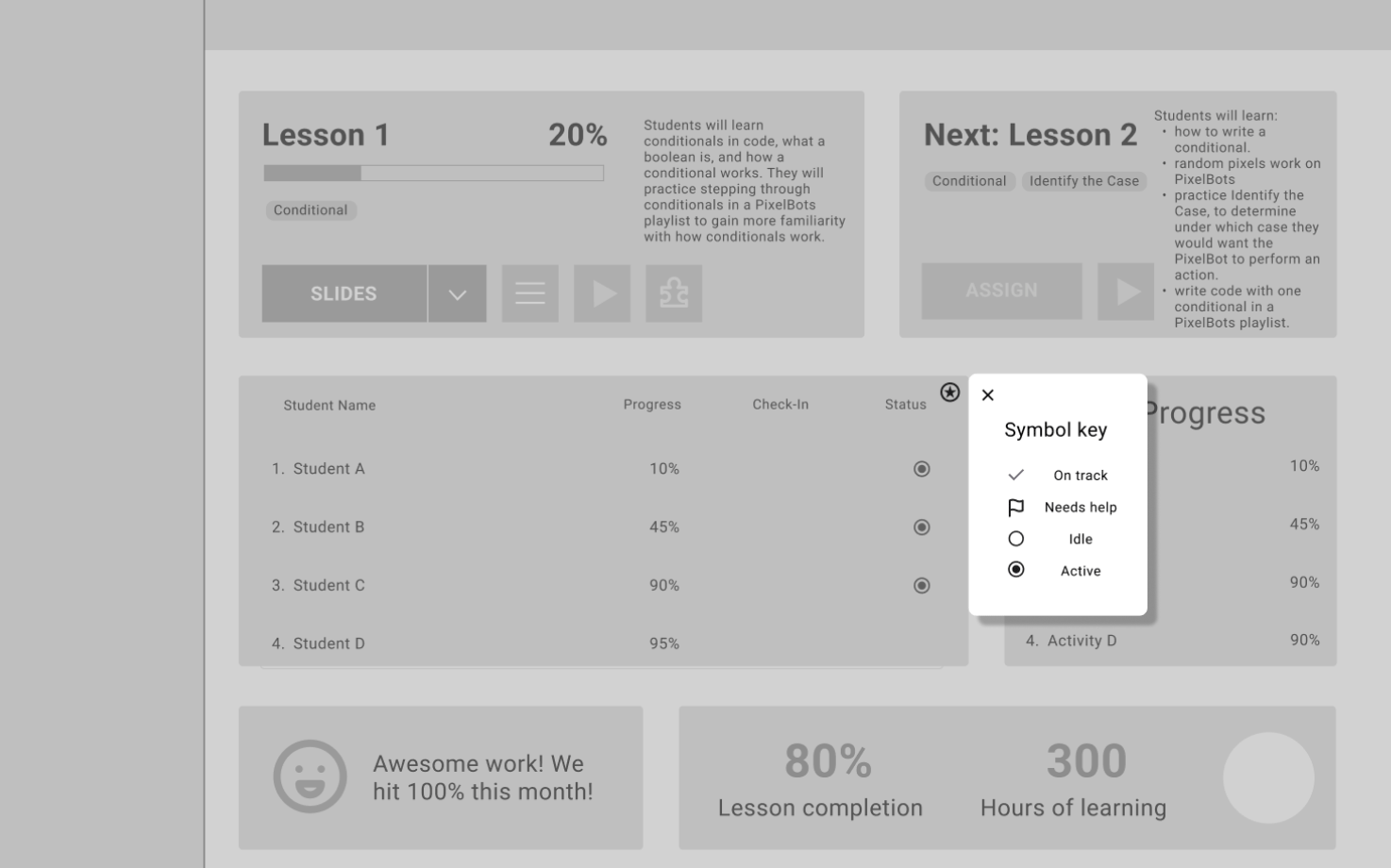
Key for different symbols
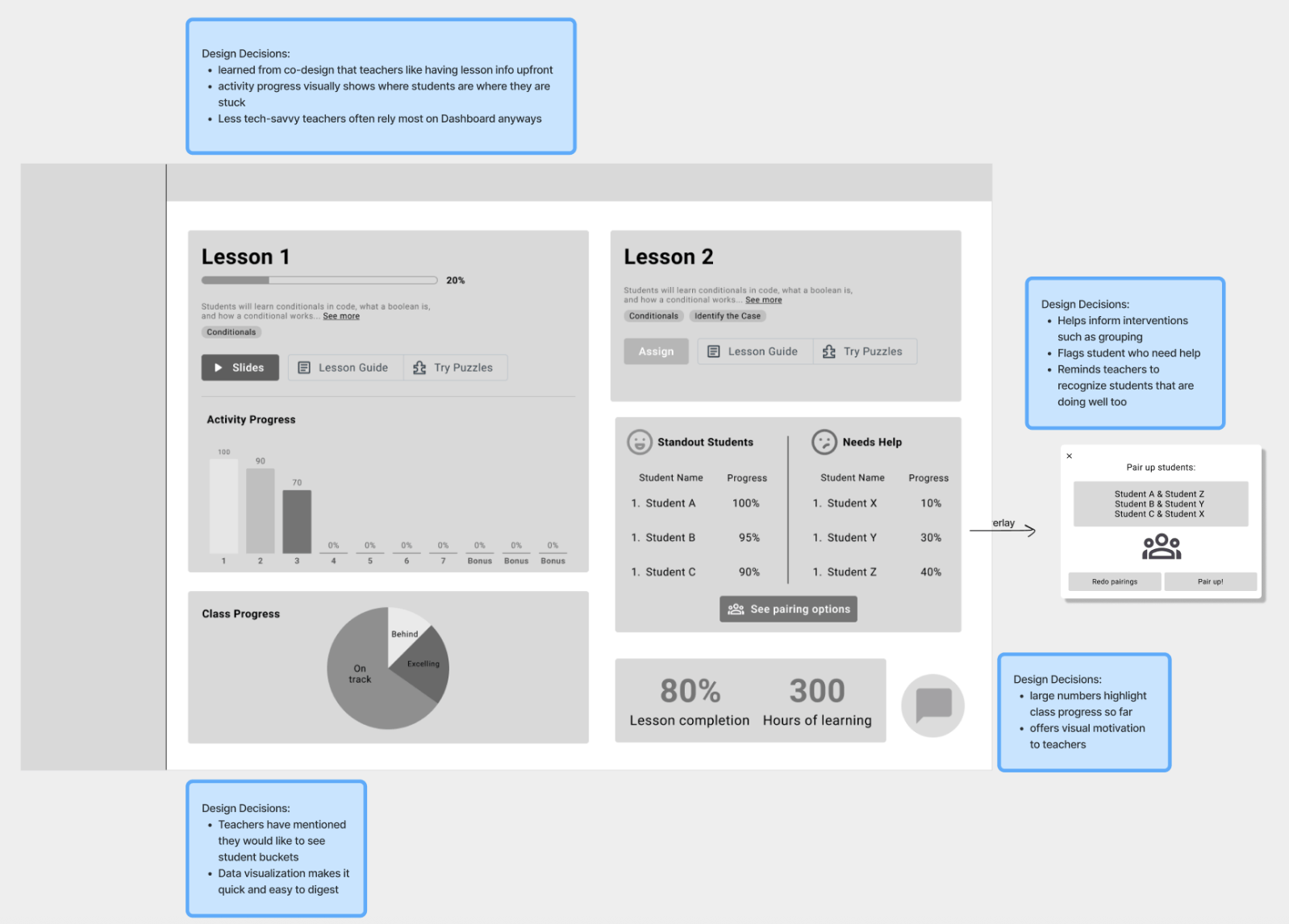
After another round of feedback with my design team, I changed my wireframes to include more data visualizations. The addition of the Activity Progress bar chart and Class Progress pie chart makes it easy for teachers to digest information, and the student breakdown helps teachers pair students quickly. The first version features data in pie charts, while the second version features bar graphs instead.

I then brought my wireframe to the 9 Dots CEO, Software, and Outreach teams to get an outside perspective. After all, us product designers had been staring at these wireframes for weeks and needed a fresh set of eyes on the usability of our wireframes. We asked other 9 Dots folks to leave comments and sticky notes on the features they liked, disliked, and were confused about.
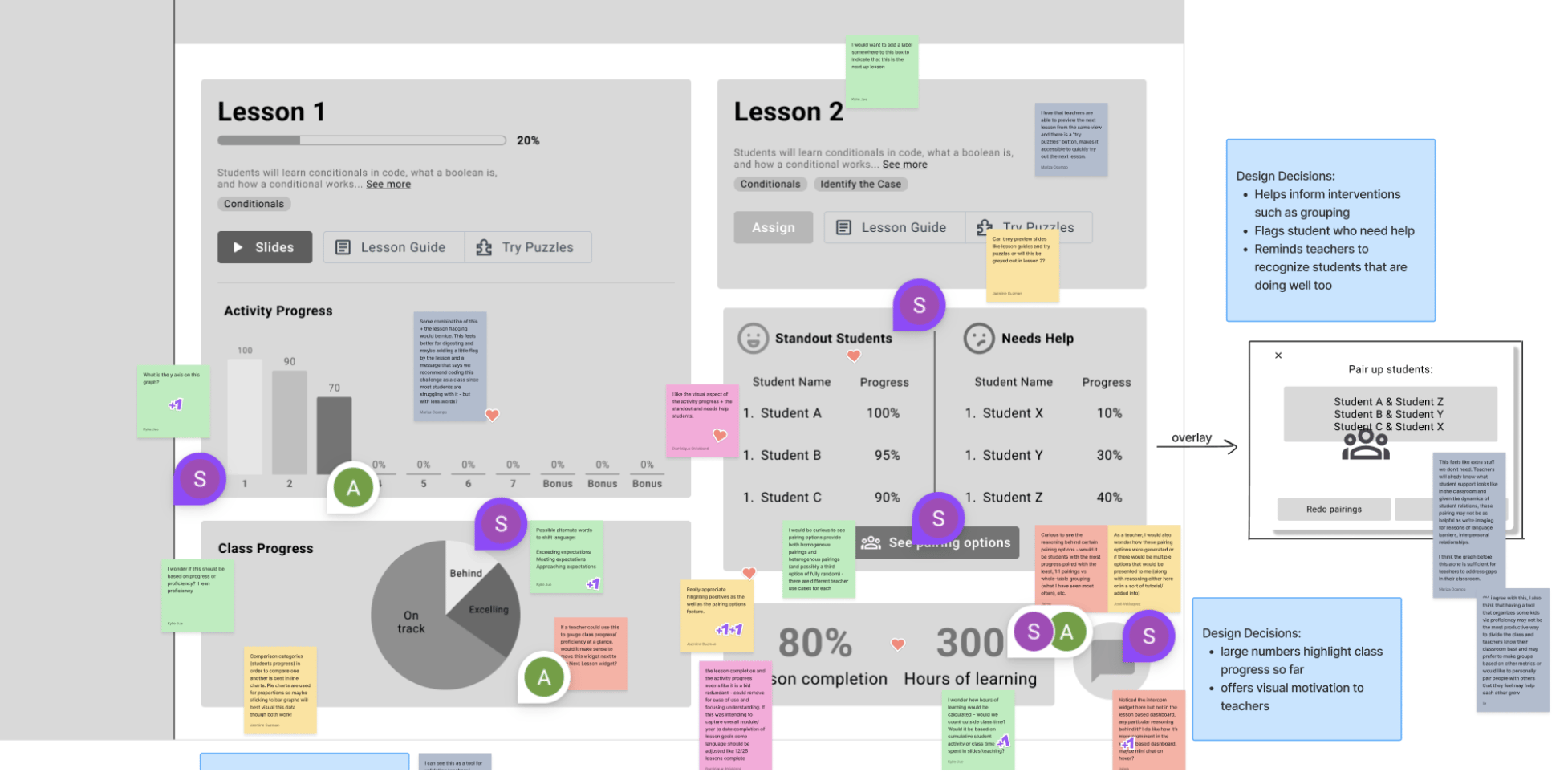
The feedback highlighted the significance of the student pairing widget, which displayed students who were exceeding and struggling. Some team members were confused about how the statistics were calculated, while others pointed out how teachers might not have enough time to analyze data-heavy widgets.
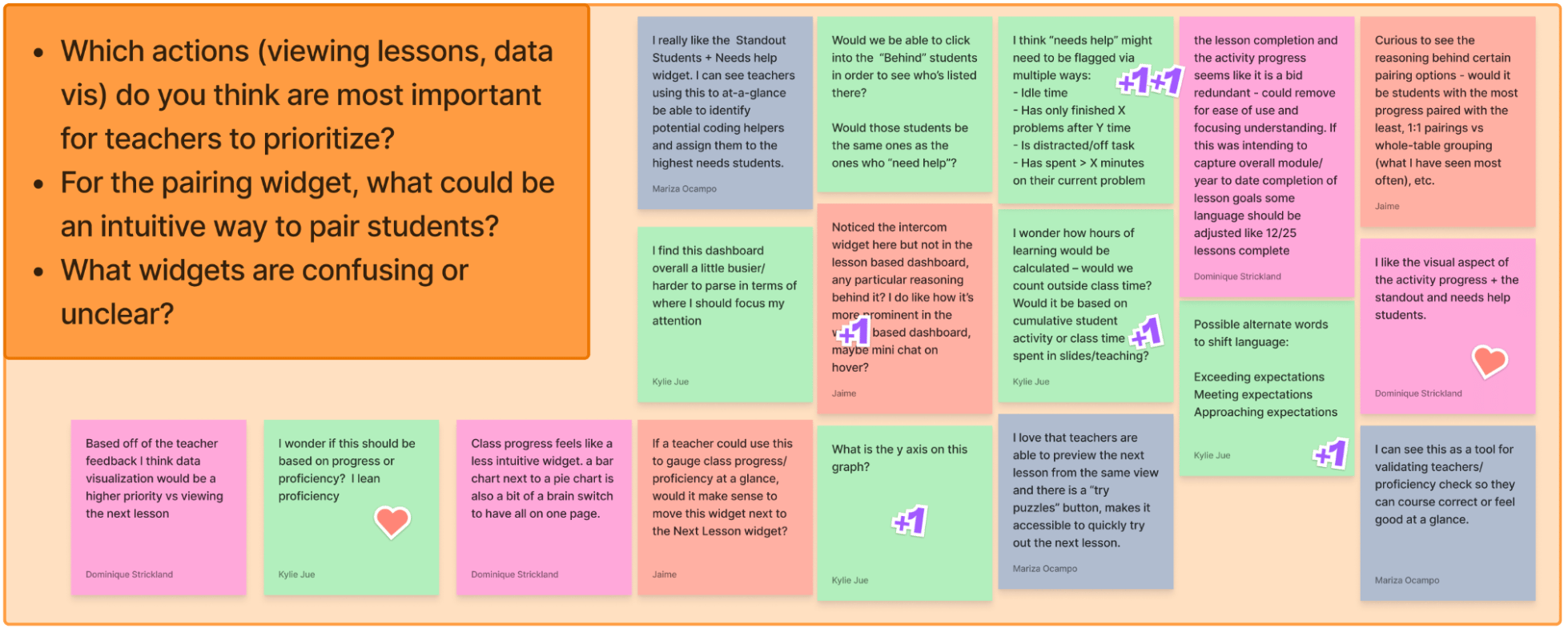
This critique session was quite helpful because it revealed several assumptions I had made during the wireframe design process. I'd added placeholder lesson statistics without really considering how they'd be calculated, and over-complicated features like the student pairing widget.
In the process of explaining my design choices to members of the Software and Outreach teams, I realized that it's important to make every design feature intentional. It's necessary to justify each element in a wireframe with a reason for the feature- otherwise that element may just clutter the design.
I incorporated the feedback from this critique meeting into a finalized set of wireframes that our team would showcase at the teacher co-design workshops (see below).
Testing
Co-design workshops with teachersI helped host two co-design workshops with 14 teachers total, where we interviewed teachers on their opinions about the dashboard redesigns. We printed out these designs and had teachers annotate the pages for features that stood out to them. Below are two contrasting dashboard designs that I contributed to- the widgets dashboard and the lesson specific dashboard.
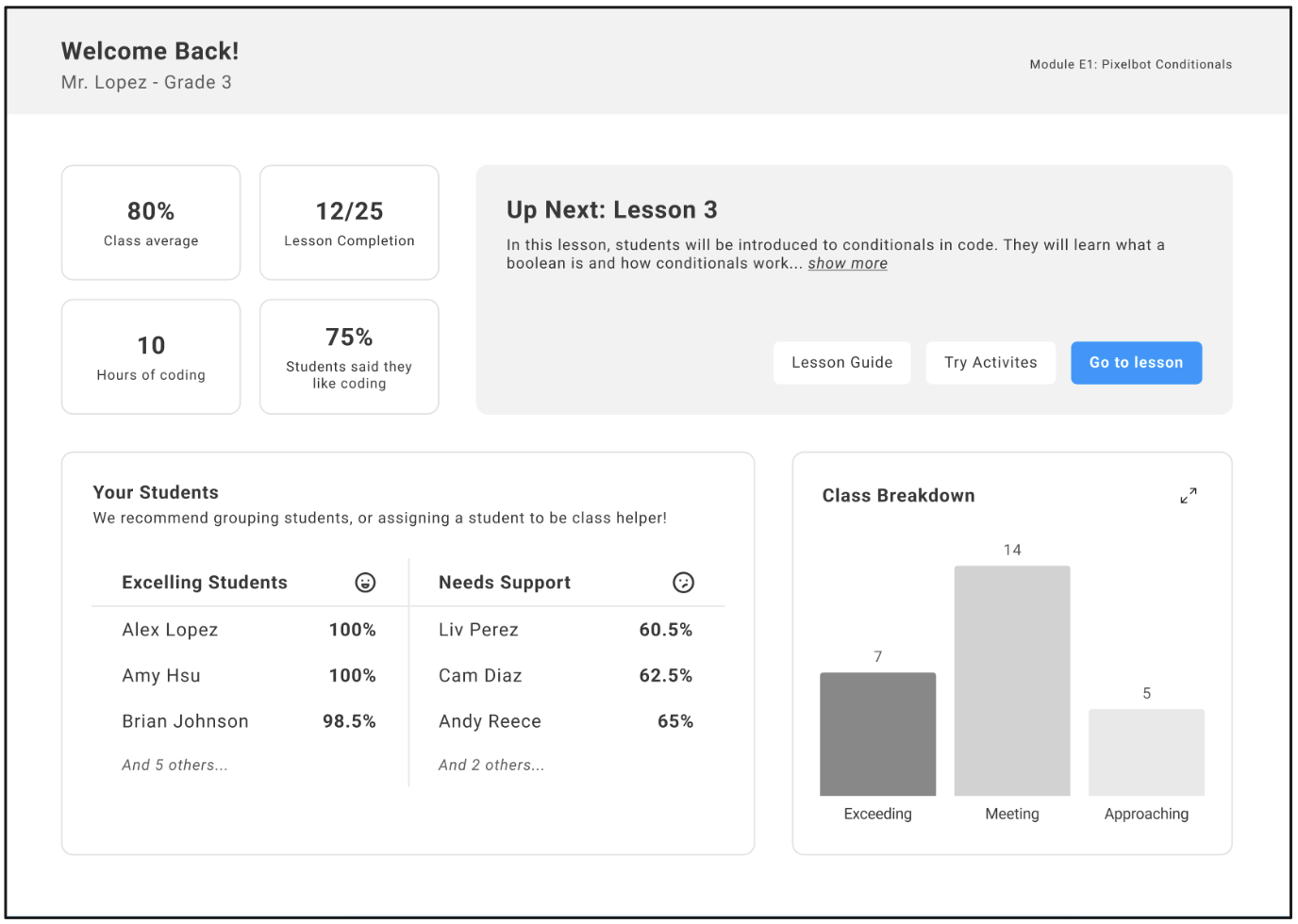
Widgets dashboard
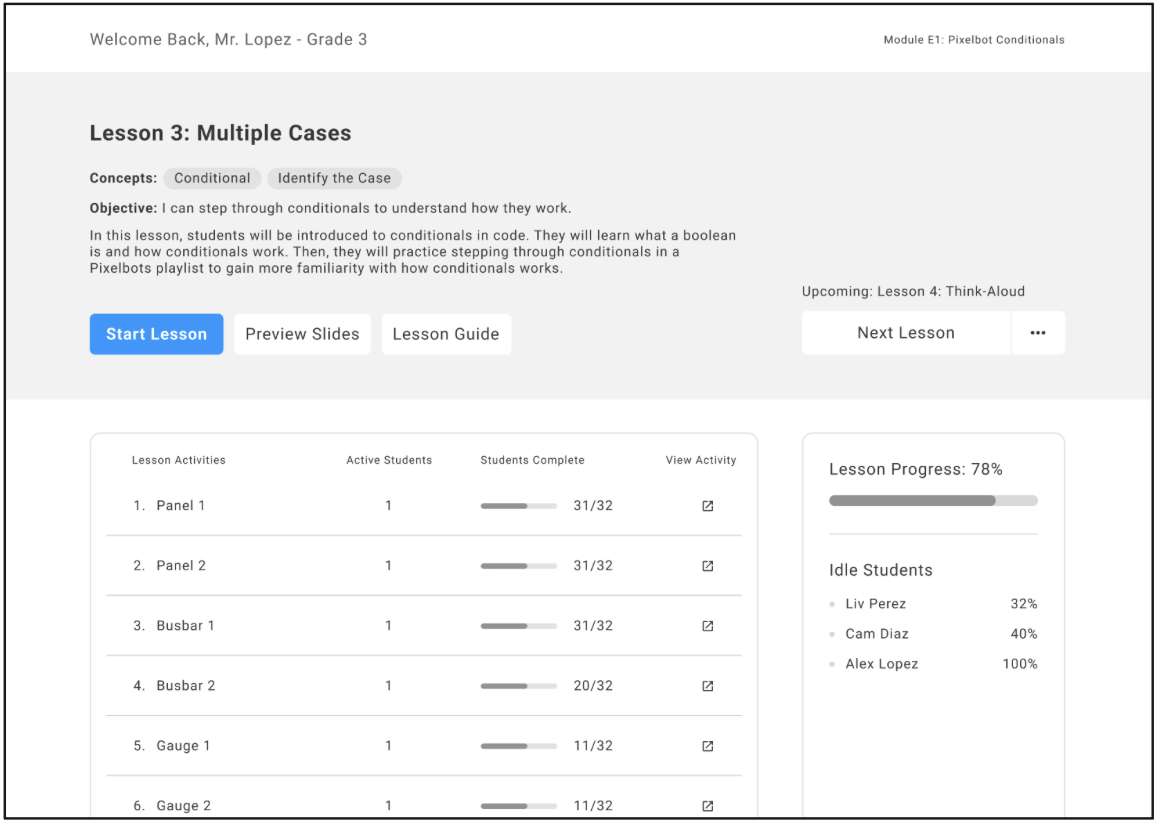
Lesson-specific dashboard
Below is an example of one teacher's annotated designs. This teacher pointed out the usability of the lesson assignment features and his confusion about some of the statistics in each design.
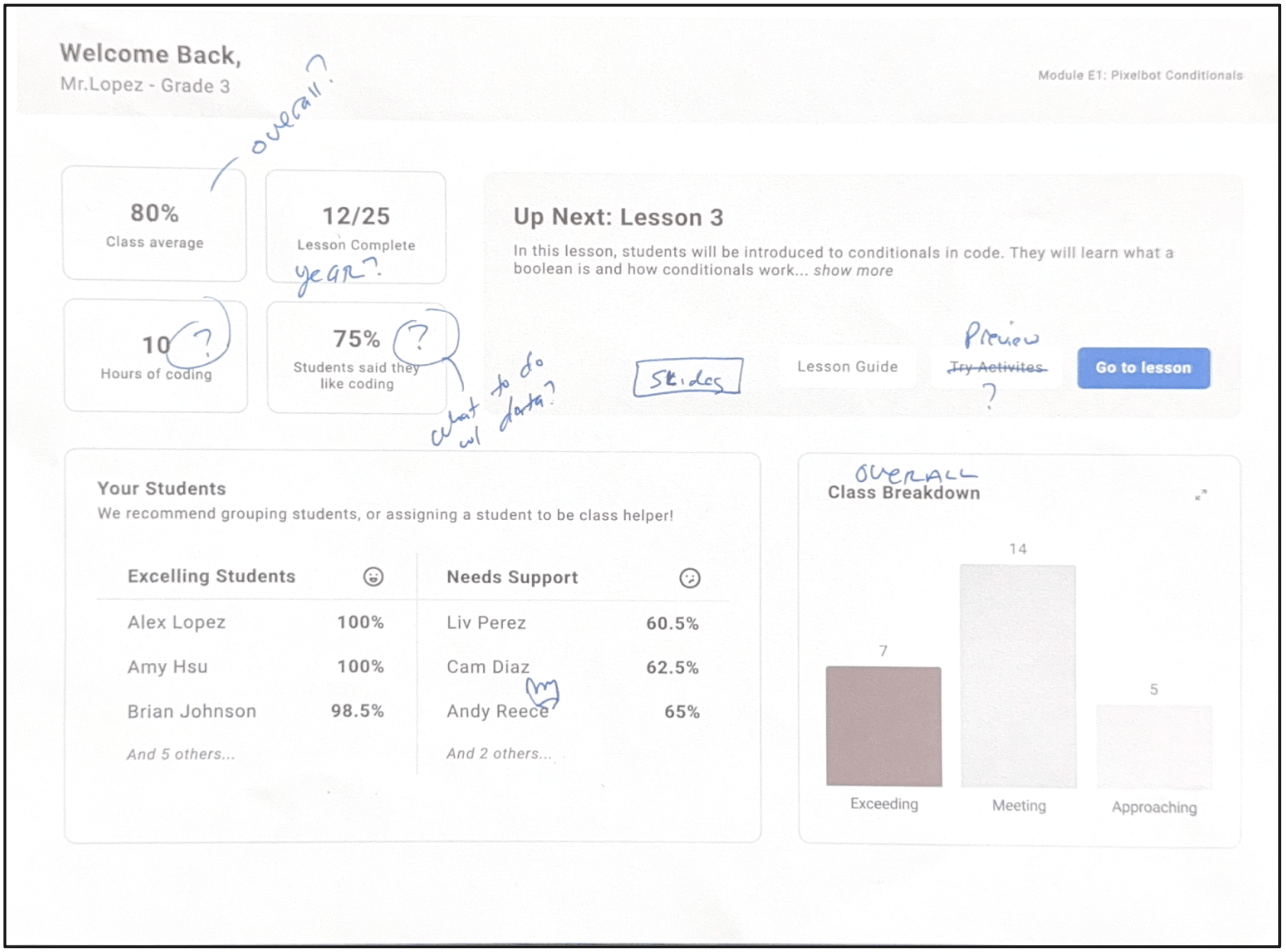
Widgets dashboard
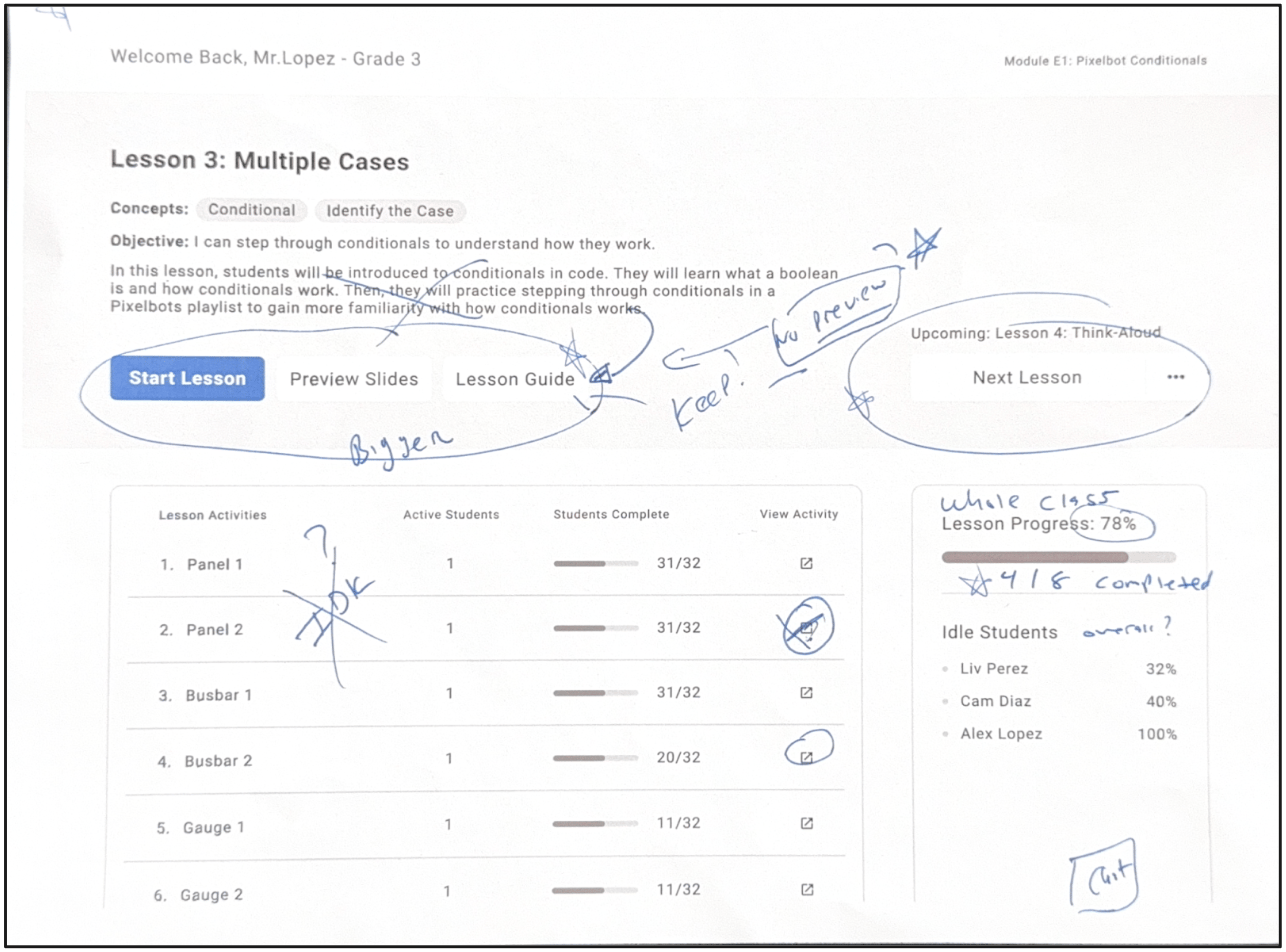
Lesson-specific dashboard
Going back to the pop-ups that would appear if teachers clicked on a certain widget, I created designs for the class breakdown information. I conducted usability testing with several teachers during the co-design workshops, asking them how helpful these features would be to them and if they preferred one over the other.
By chatting one-on-one with actual computer science teachers, I was able to more fully understand what teachers needed most in a dashboard. Teachers, who often had little free time, prioritized charts that they could analyze at a glance and intuitive, one-click student pairings.
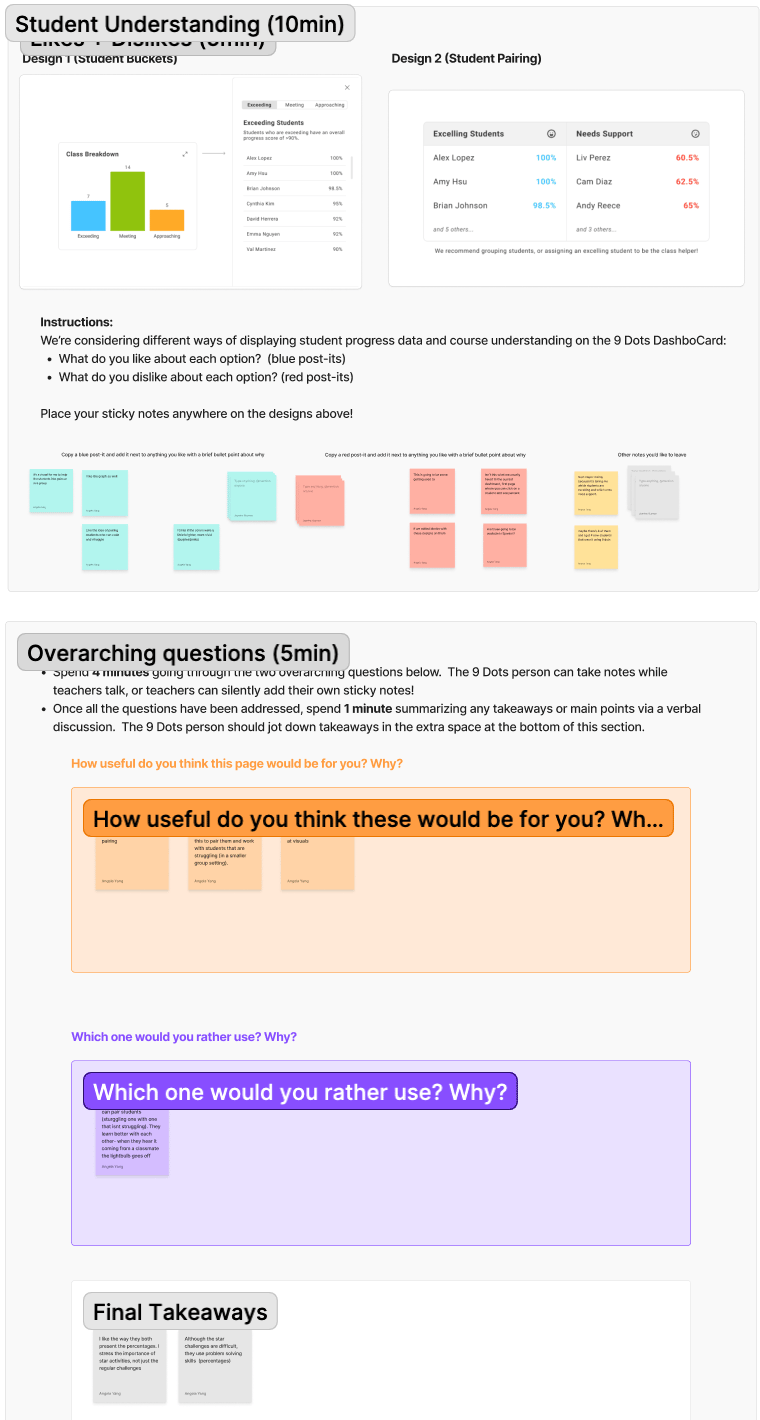
I organized each teacher's likes, dislikes, and questions into categories in a FigJam to prepare the data points for thematic analysis. I also included sections on behaviors (how teachers would use different elements in the dashboard) and if they preferred the widgets or lesson-specific dashboard.
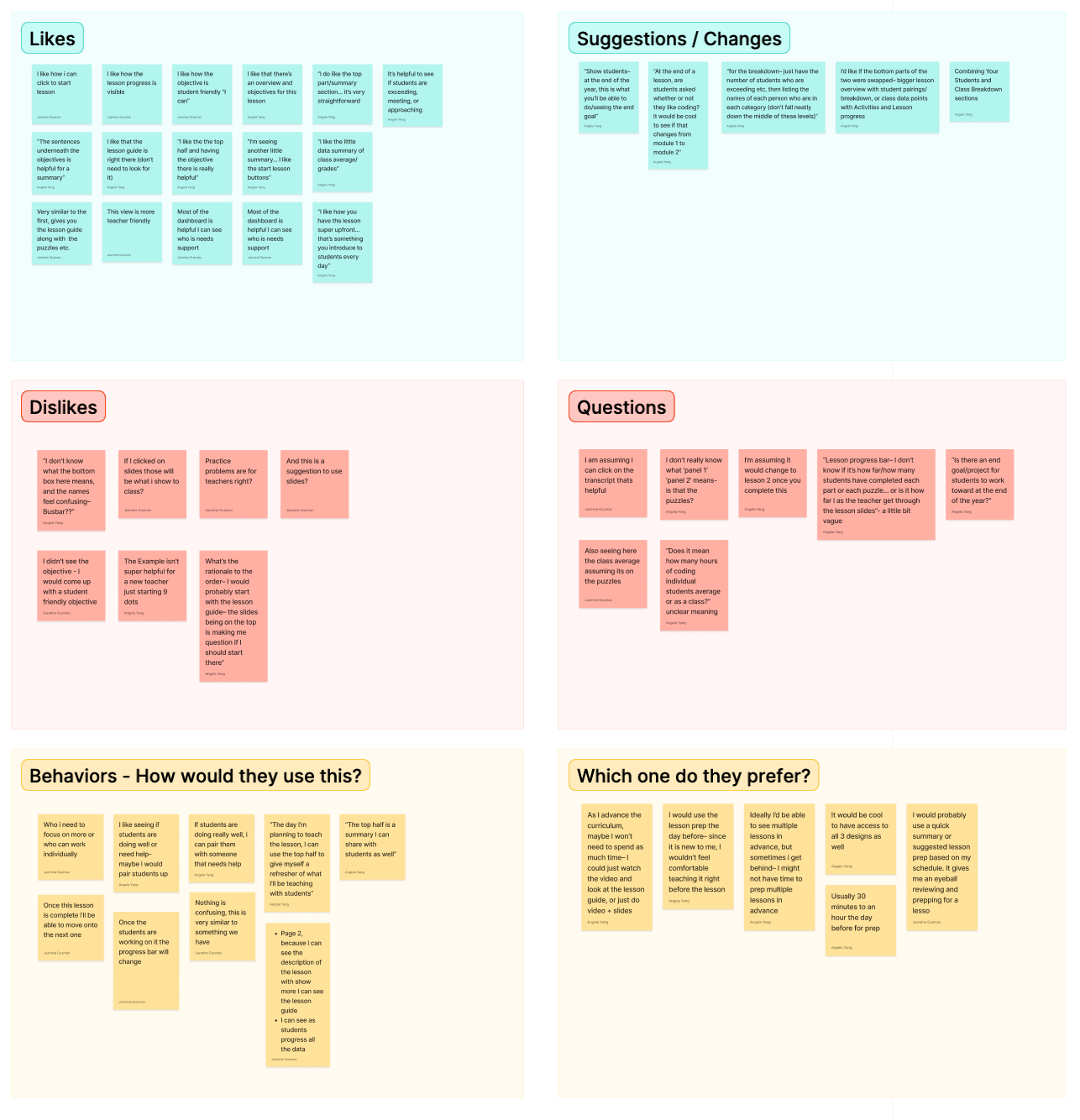
Organizing all the teacher interview snippets into one big group, I began separating each data chunk into smaller subtopics. This way, I was able to pinpoint the overarching themes in teachers' pain points and user flows for both dashboards.

Thematic analysis mind map for the widgets dashboard
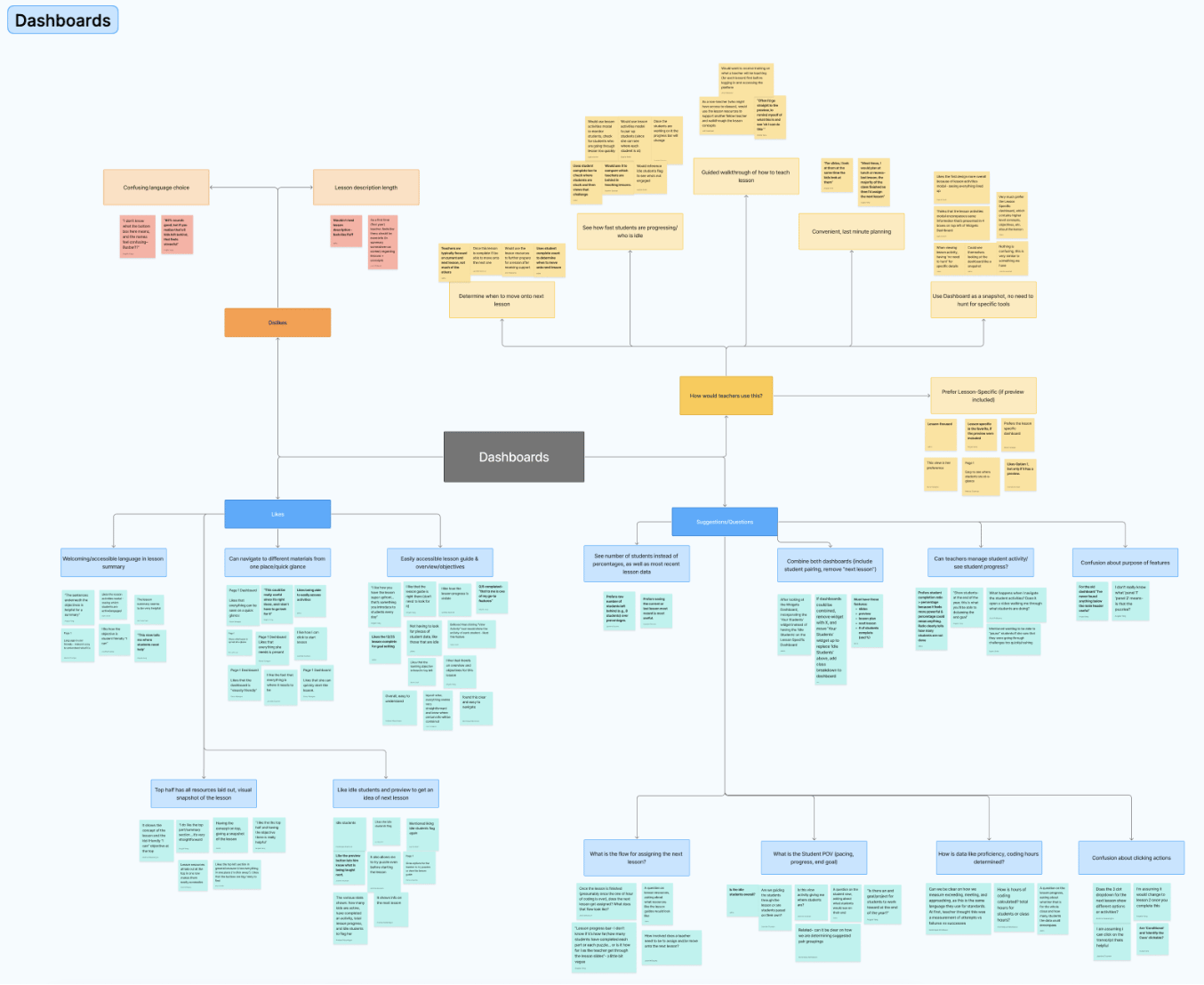
Thematic analysis mind map for the lesson-specific dashboard
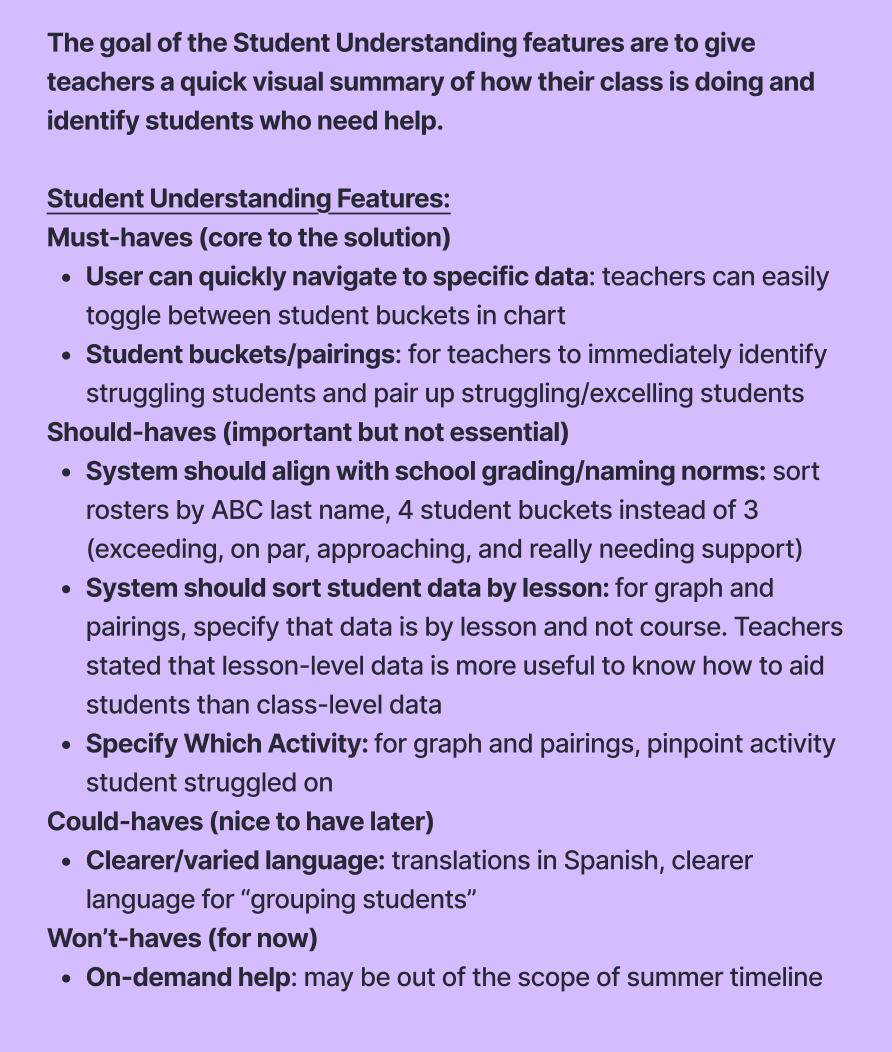
I consolidated the main takeaways from both design maps into an MVP feature checklist, highlighting the must-haves, should-haves, and could-haves to include in the redesign. In the end, I focused on the widgets dashboard redesign while my design teammate worked on the lesson-specific dashboard. I prioritized the student grouping and quick data navigation features in my final high-fidelity mockup for the Teacher Dashboard.
My final dashboard redesign highlighted the current lesson's activity progress, actionable next lesson steps, and students who were excelling/needed help. I used a simple user interface with different widgets for each feature, and incorporated a limited color palette to depict various levels of class progress.
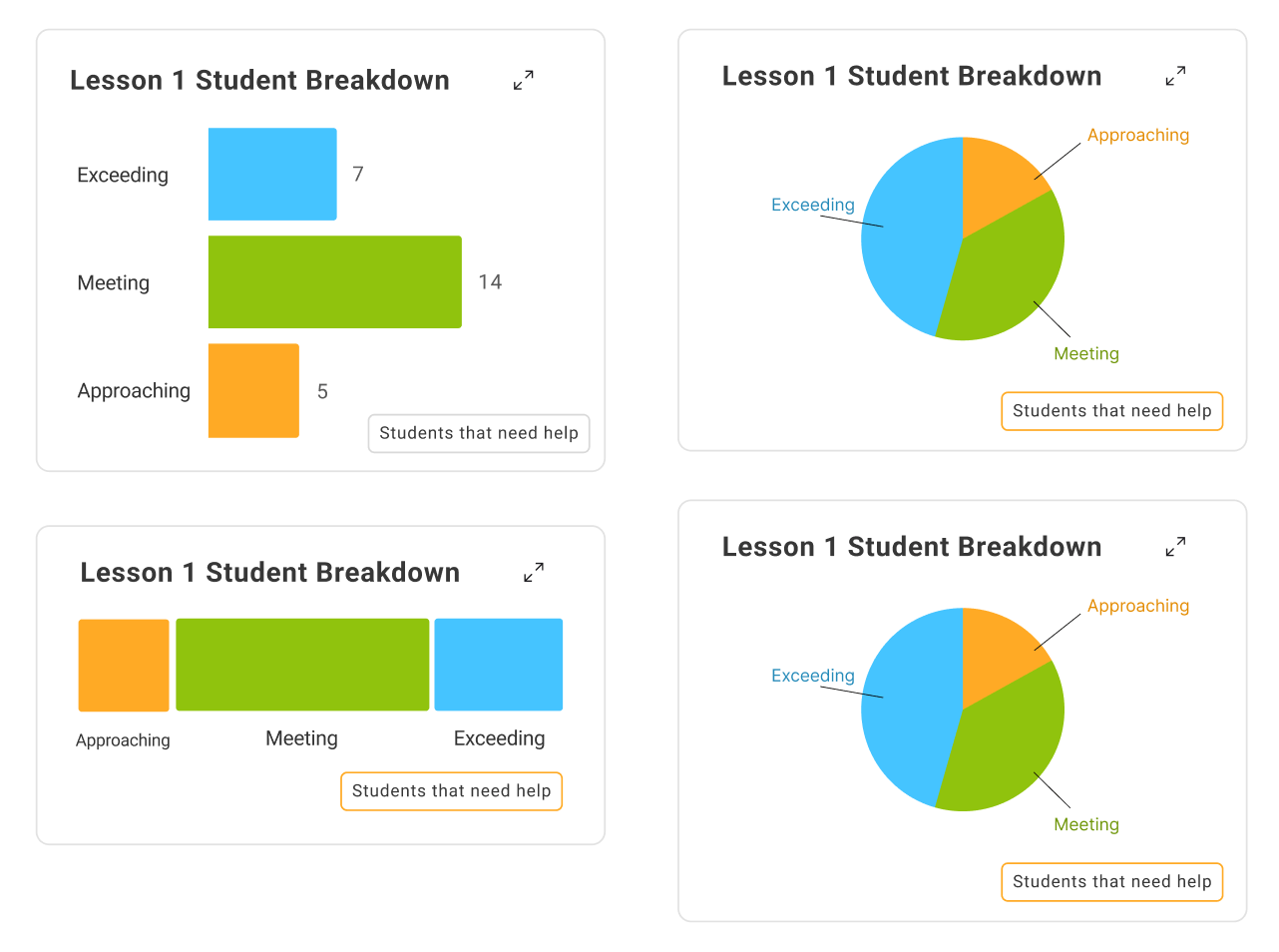
I created additional chart breakdowns of student progress within each class, experimenting with pie charts vs. bar charts. The pie chart effectively visualized different student groups as part of a whole. However, the bar graph proved to be more popular among teachers since it provided a visual distinction of which student groups were largest.
I designed informational pop-ups that would appear when the teacher clicked on the class breakdown widgets. The bar graph pop-up groups students into three categories based on their progress in the lesson that the teacher is currently on. Teachers can also pair students together if some are struggling more than others, and they can do so using the pop-up of students who are excelling vs. students who need support.
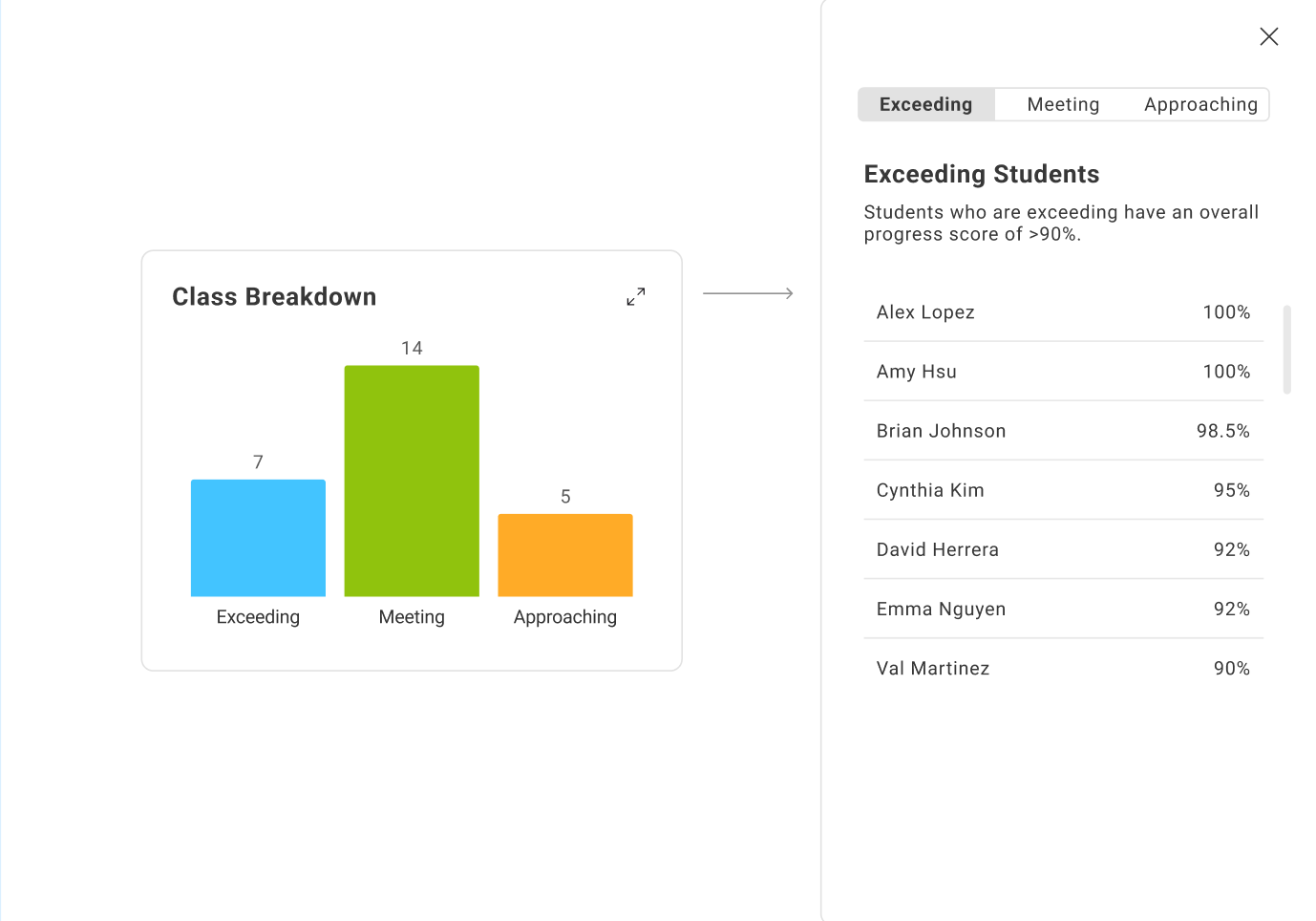
Bar graph displaying which students are Approaching, Meeting, and Exceeding the learning goals
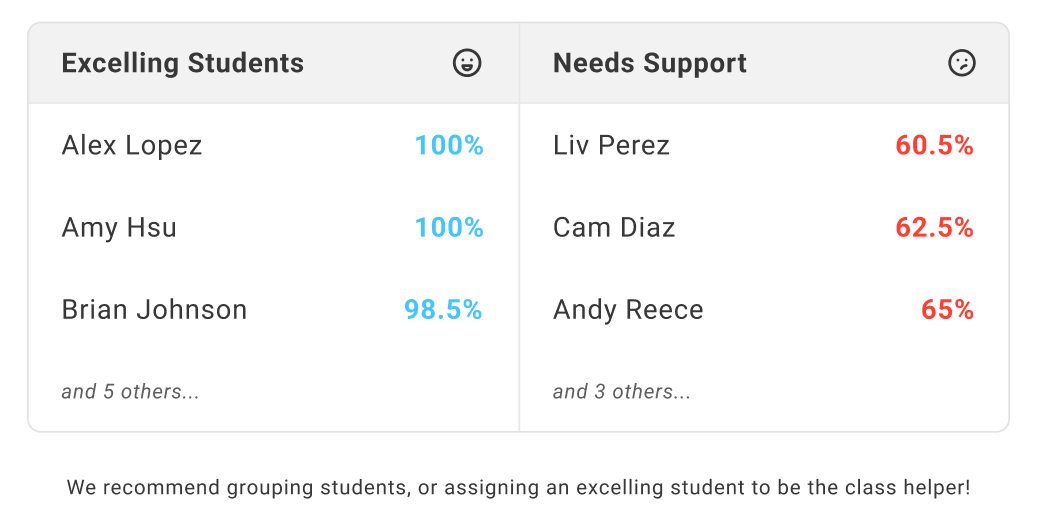
Pop-up graph of students who need the most help, and the students that can help them
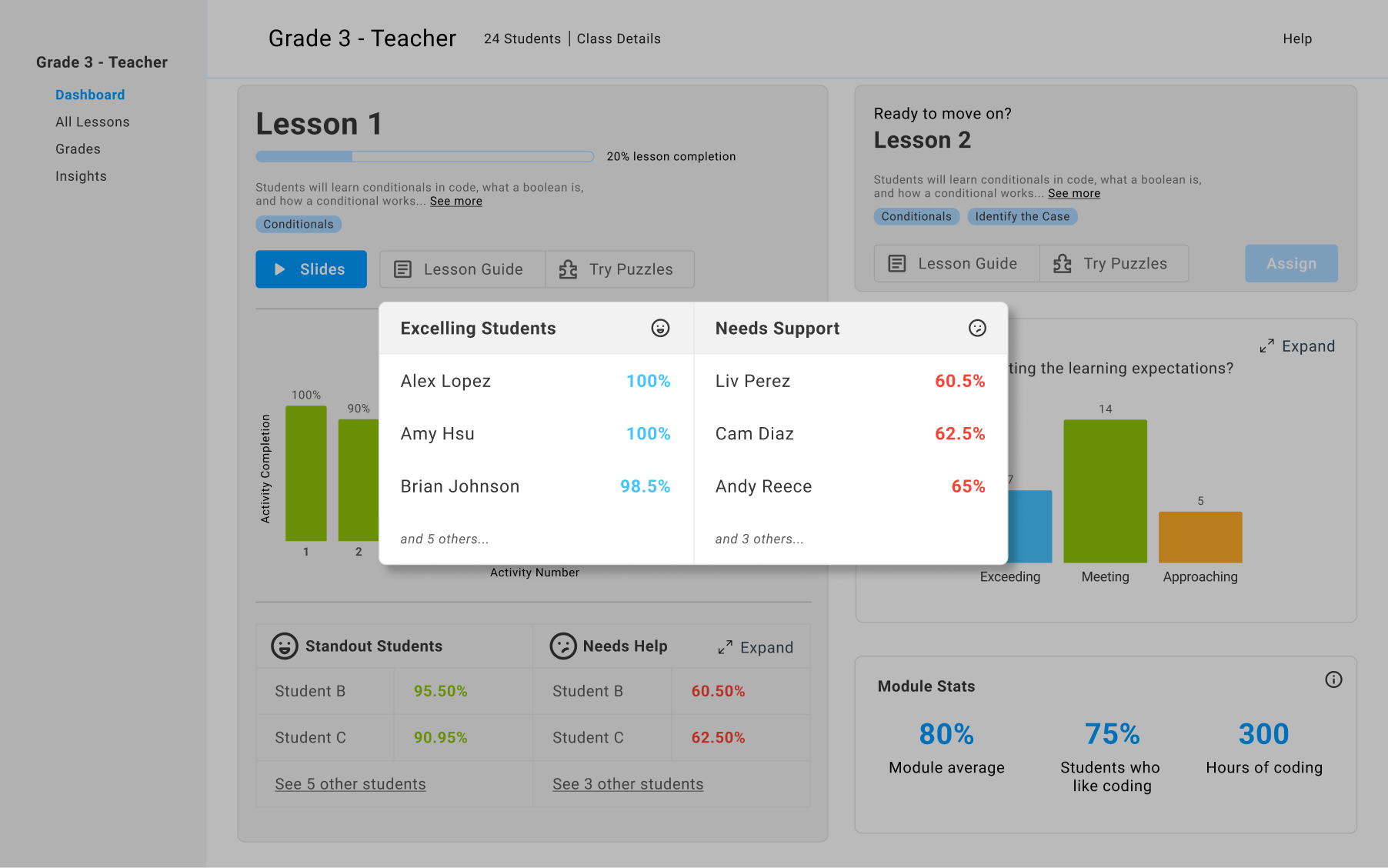
The pop-up appears as an overlay on the dashboard when clicked on, and can be expanded by the user
01
02
03
I'm excited to see the Teacher Dashboard redesign, as well as the new 9 Dots curriculum, rolled out to around 50+ teachers in the coming months. If I had more time at 9 Dots, I would work on consolidating the student grouping features, designing clearer statistics for the motivational pop-up feature, and pinpointing specific lesson activities that student struggle on.
I developed such insightful connections with other 9 Dots members and educators through my time here, and I'm glad I was able to contribute to a cause that supports our next generation of educators!
Thanks for stopping by :)
Made with ❤︎ in Stanford, CA
Let's chat!
ANGELA.AY.YANG@GMAIL.COM